Inflow and Infiltration
 Inspection Builder Wizard
Inspection Builder Wizard
Inspection Builder Wizard
Note. Rule Number 1. For this to be useful, enter an Inspection Date before using the Builder.

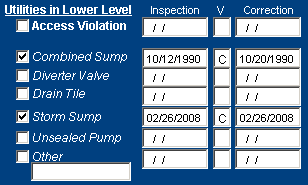 | Inspection / Violation Builder Wizard: Double Clicking on an Inspection Date field associated with a particular feature starts a cascading series of dialogs that quickly and accurately fill in all of the fields associated with the inspection of that feature. Example. You could click on the Unsealed Pump Inspection Date Field (shown left). This will pop up a dialogue: |
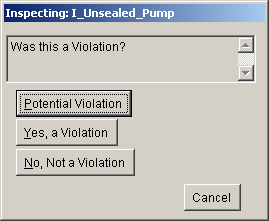 | Continue by simply clicking on Potential, Violation or No. The builder Checks off Unsealed Pump, Enters the Date it was Inspected and marks the Violation check box accordingly. |
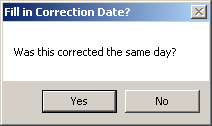 | Often there will be Violations that are simply corrected during the Inspection. If that is the case then click yes in the indicated dialogue box. |
From there the Builder can Launch you directly into the Violation Form.
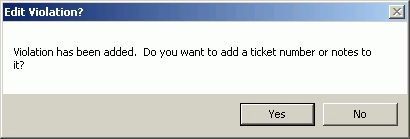
If you have notes or a ticket number, you may enter the information..
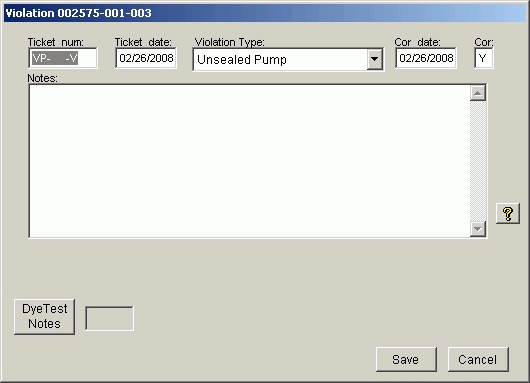
.. click Save

and your violation has been entered with just a few quick clicks and strokes.